

Table of Contents
- How to Search a PDF (and Why It Often Fails)
- What Makes a PDF “Searchable”?
- How to Make a PDF Searchable (No Tech Background Needed)
- The Bigger Problem: Searchable Doesn’t Mean Findable
- What Modern Teams Are Doing Instead
- AWCI Case Study: A Boost in Productivity
- Conclusion: It’s Time to Rethink Your PDF Experience
Imagine you are in a rush to get out the door and you cannot find your shoes. You search in all the obvious places – by the door, on the shoe rack, in the closet, under the couch. But you can’t locate them! As you stand in the doorway, checking the time on your phone and jiggling your keys, you say out loud, “I need a magic button that will locate my stuff, so I don’t have to waste all this time!”
In a similar manner, searching PDFs can be frustrating and comes with its own set of challenges. PDFs are everywhere – product catalogs, internal docs, user manuals. But trying to find something in them? That’s another story. Not all PDFs are created equal — and the Ctrl+F function isn’t always your friend.
However, there is a different way to search through PDFs and digital catalogs – the so-called “magic button.” New search methods will help your users, enhance their experience, and drive long-term business success. Whether you’re looking to reduce redundancy or optimize the client experience within your digital catalog, in this blog we’ll discuss the best way to fix a frustrating search effort within a PDF. In other words, we’ll show you how to make a PDF searchable and truly usable.
How to Search a PDF (and Why It Often Fails)
Searching for a word in a PDF seems simple enough – just hit Ctrl+F, type in a keyword, and jump to the result. Whether you’re using a browser-based viewer like Chrome or Edge, or a desktop tool like Adobe Acrobat, this basic function is built to help you find text fast. More advanced options, like Adobe’s search bar, can scan multiple documents or look for whole phrases.
But here’s the catch: not all PDFs are created equally.
In many cases, the typical search method doesn’t work as expected, especially when you’re dealing with scanned PDFs that are essentially images. If the document wasn’t properly processed with Optical Character Recognition (OCR), the text isn’t actually searchable at all. Even in text-based PDFs, inconsistent formatting, odd character encodings, or hidden layers can confuse search tools and deliver incomplete or inaccurate results.
Another issue? Lack of metadata or structure. Many PDFs don’t include tags, headings, or searchable layers, making it impossible to jump between sections or filter content like you would in a web page or interactive catalog.
Bottom line: traditional PDF search often falls short, especially for product catalogs or technical documents where speed and precision matter most.
What Makes a PDF “Searchable”?
A searchable PDF is one where the text can be recognized, selected, and searched using the usual tools or a built-in search bar. These PDFs contain actual text data layered over the visual content. In contrast, non-searchable PDFs are often generated from scanned documents. Essentially, they are just images; the text isn’t readable by search functions.
To convert these image-based files into searchable ones, software uses Optical Character Recognition (OCR). OCR analyzes the scanned content and identifies text characters, creating a digital text layer that enables search, selection, and copying. Without OCR, PDFs remain static and inefficient for content discovery.
For example, here’s how a PDF might look text-based, but isn’t:
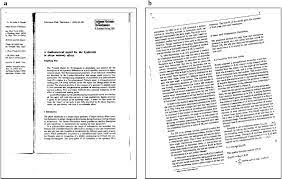
Example of a scanned PDF document that is not searchable.
This is a scanned catalog page. You can place this within a PDF document, but there would be no way to actually search it. Likewise, old brochures or image-based manuals will lead to similar frustrating experiences within PDFs.
How to Make a PDF Searchable (No Tech Background Needed)
Once a PDF is searchable, it becomes instantly more useful, allowing users to find keywords, copy text, and navigate content with ease. Whether you’re managing product catalogs, manuals, or internal documents, making your PDFs searchable can save time and improve productivity.
Now let’s go over a step-by-step process of how to make a PDF searchable. This may sound involved, but it actually does not require a tech background at all.
1. Use Adobe Acrobat’s OCR to Make PDFs Searchable
To make it searchable, apply Adobe Acrobat’s Optical Character Recognition (OCR). You will need to launch Adobe Acrobat Pro DC (OCR is not available in the free Reader). Next, select the “Scan & OCR” Tool. Apply OCR to the document and adjust the OCR Settings, such as choosing the correct language of the text for accurate recognition or selecting to keep the image, or make editable text. Finally, click “Recognize Text” to process the document and make the text searchable. Lastly, remember to save the PDF.
2. Free Tools Online (SmallPDF, iLovePDF) to Make a PDF Searchable
You can use free tools online, such as SmallPDF or iLovePDF, to make the PDF searchable. With both of these tools, you will follow similar steps as you would for Adobe Acrobat.
- Visit: https://www.smallpdf.com/ocr or https://www.ilovepdf.com/ocr.
- Upload Your PDF: Drag and drop your scanned PDF into the upload area or select your file from your device, Google Drive, or Dropbox.
- Select OCR Option: Choose the OCR feature (you may need to start a free trial if you are using SmallPDF).
- Choose Language: Set the correct language to improve text recognition accuracy.
- Start OCR: Click “Convert” or “Recognize Text.”
- Download: Once processed, download the newly searchable PDF.
3. Uploading Into a Document Search Platform
You can also consider uploading the document into a document search platform. A platform like this typically performs automatic OCR upon upload, which converts image-based PDFs into searchable formats behind the scenes.
For product catalogs, consider platforms like DCatalog that handle search + user experience in one. Maintain brand consistency and optimize operational efficiency.
The Bigger Problem: Searchable Doesn’t Mean Findable
Just because a PDF is searchable doesn’t mean it’s easy or useful to navigate. While OCR can make static text discoverable, the real challenge lies in how users interact with that information. Relevance, speed, and structure all play a crucial role in the findability of content.
Imagine searching for “red shirt” in a 150-page product catalog. The search function returns 46 results scattered across multiple sections with no images, no filtering, and no context. You’re left scrolling through each match manually, trying to figure out which one actually fits your needs. Technically, the search worked. But in practice, it failed the user.
Without a structured layout, rich metadata, filters, or visual cues, even the best OCR-enhanced PDFs become digital haystacks. In today’s fast-paced B2B and eCommerce environments, users expect intelligent search; something that surfaces the right content, not just all the content.
That’s where interactive digital catalogs step in. They don’t just make content searchable, they make it findable. By combining search with intuitive navigation, product tags, clickable categories, and real-time filtering the result is faster decision-making, less friction, and a significantly better user experience.
What Modern Teams Are Doing Instead
Forward-thinking businesses are moving beyond basic, static PDFs and embracing tools that deliver a smarter, faster content experience. Platforms like DCatalog are leading the charge; transforming product literature, catalogs, and data sheets into interactive, searchable ecosystems that work the way modern teams (and customers) expect.
One major trend is the integration of AI-powered search, which doesn’t just look for keywords, it understands context. This helps users surface the most relevant results faster, even across lengthy or complex documents.
Many teams are also adopting smart flipbooks that mimic the look and feel of a printed catalog while adding clickable navigation, embedded videos, and dynamic product filters. These features make browsing more intuitive and engaging.
Another powerful upgrade? Metadata and tagging systems. Instead of relying on Ctrl+F or vague filenames, teams are using detailed metadata (like product specs, categories, or SKUs) to ensure every piece of content is easy to find, sort, and understand.
The shift is clear: it’s not just about making your PDFs searchable. It’s about turning them into digital experiences that actually help users find, engage with, and act on the information they need.
AWCI Case Study: A Boost in Productivity
A recent Manufacturer’s Corner blog published by AWCI (Association of the Wall and Ceiling Industry) highlights the new catalog for Grabber Construction Products, a global brand offering over 16,000 products, and how they created a digital catalog with DCatalog’s technology.
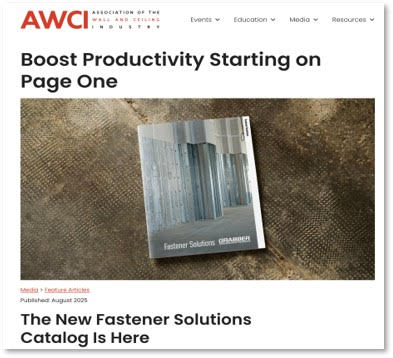
Image of the AWCI article talking about the new Grabber Pro catalog.
Grabber Construction Products is an international distributor that provides premium-quality products, reliable service, and unmatched support to contractors and dealers around the world. What started with a single screw has become a portfolio of over 16,000 professional-grade solutions designed to improve the lives of contractors and installers—from game-changing drywall fabrication systems and state-of-the-art collated solutions to finishing and decking products, tools, adhesive, paint, caulk, scaffolding, and more. If it makes a jobsite work harder and smarter, Grabber has it.
As you can imagine, this catalog is massive and Grabber needed an option for their customers to easily and speedily search in a smart, accessible solution. The most important functions needed within the catalog were readability and usability.
When researching solutions, Grabber noticed that DCatalog’s platform offers a great option for Grabber. Our users are able to add bookmarks and annotate pages, run searches by keyword or item number, easily navigate between sections via the expandable, hyperlinked table of contents, and download individual pages. One of the most powerful features of the digital catalog is Stitchbook, DCatalog’s custom catalog technology. With over 284 pages in the full Fastener Solutions Catalog, we knew contractors wouldn’t always need the entire book for every job or submittal. Stitchbook solves that problem by letting users curate exactly what they need.
Stitchbook transformed the Fasteners Solution catalog from a static resource into a dynamic tool for productivity. It’s not just a reference — it’s a customizable, living document that adapts to every contractor’s workflow. Best of all, Grabber Pro took their static PDF to the next level. It is easy to search, intuitive, and quick to use.
Conclusion: It’s Time to Rethink Your PDF Experience
If your team is still relying on static PDFs and Ctrl+F as the default search method, it may be time for a serious upgrade. As customer expectations evolve and content libraries grow more complex, simply making a PDF searchable isn’t enough. Today’s users need intuitive, structured, and interactive experiences that help them find what they need, fast.
Modern tools like DCatalog are bridging the gap between basic search and intelligent navigation, transforming flat files into dynamic resources that actually drive results. Reimagining your PDF experience isn’t just a tech upgrade – it’s a competitive advantage.
Now is the time to update and rethink your PDF experience. Reach out to one of our Publishing Executives today, or sign up for a free trial to try out our platform for yourself.